
What Is iCloud And Why Do I Keep Getting Storage Warnings?
Updated June 11, 2026

Understanding How iCloud Works Across Your Apple Devices
If you own an iPhone, iPad, or Mac, you’ve probably seen a message saying your iCloud storage is full or that you’re running out of space. For many people, these warnings can be confusing and frustrating.
The good news is that understanding iCloud is much easier than it sounds.
HumanShield™ by Ubermac was created specifically to help protect Apple users from scams like these. We’ll explain more later in this article.
What Is iCloud?
iCloud is Apple’s secure cloud storage service. Think of it as a digital filing cabinet that stores important information online instead of only on your devices.
iCloud can store:
- Photos and videos
- Contacts
- Calendars
- Notes
- Passwords
- Documents
- Device backups
- Messages
- Safari bookmarks
When you sign in to your Apple Account on multiple devices, iCloud keeps your information synchronized across all of them.
For example, if you take a photo on your iPhone, it can automatically appear on your iPad and Mac as well.
Why Am I Receiving iCloud Storage Warnings?
Every Apple Account includes a limited amount of free iCloud storage.
Over time, many people fill that storage with:
- Photos and videos
- Old device backups
- Large attachments in Messages
- Documents stored in iCloud Drive
- App data and backups
When your available storage becomes low, Apple begins displaying warning messages to prevent backups, photos, and other services from stopping unexpectedly.
What Happens If My iCloud Storage Is Full?
When iCloud storage reaches its limit, several important features may stop working properly.
You may experience:
- iPhone or iPad backups failing
- Photos no longer syncing
- New photos not uploading to iCloud
- Documents failing to sync between devices
- Email issues if using an iCloud email address
These warnings are designed to help prevent data loss before a problem occurs.
How Do I Check My iCloud Storage?
On iPhone or iPad:
- Open Settings
- Tap your name at the top
- Tap iCloud
- Review the storage graph
On Mac:
- Open System Settings
- Click your name
- Select iCloud
- View your storage details
Apple provides a breakdown showing exactly what’s using your storage.
Should I Delete Things Or Upgrade My Storage?
That depends on your situation.
For some people, deleting unnecessary backups and old files may free enough space.
For others, especially those with thousands of photos and videos, upgrading to a larger iCloud storage plan is often the simplest solution.
The key is understanding what’s using the space before deleting anything important.
Common iCloud Mistakes
Many people mistakenly believe:
- iCloud is the same as device storage
- Deleting photos from a device won’t affect iCloud
- A backup means everything is stored forever
- Storage warnings can be ignored
- Every email mentioning iCloud is legitimate
These misunderstandings can sometimes result in lost photos, failed backups, or falling victim to scams.
Beware Of Fake “Cloud” And iCloud Emails
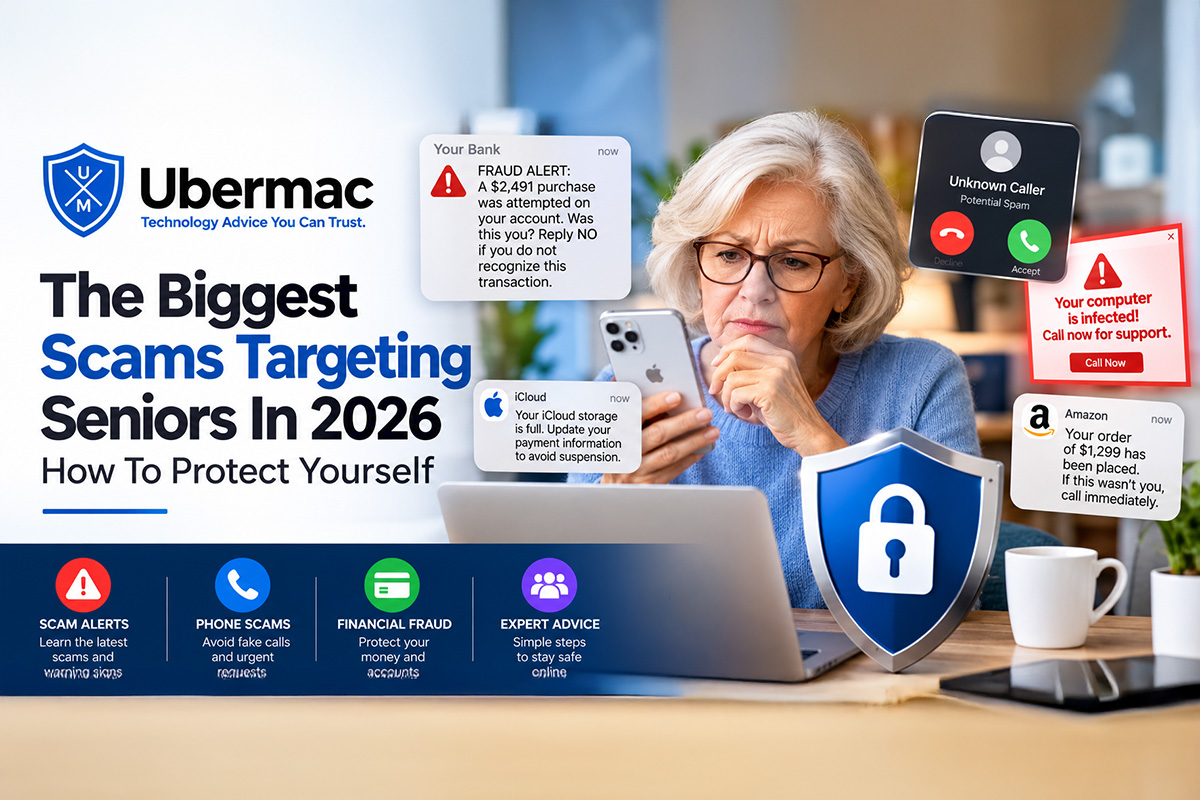
Another source of confusion for many Apple users is the large number of scam emails and text messages that claim there is a problem with their cloud account.
Cybercriminals frequently send messages claiming:
- Your cloud storage is full
- Your account has been suspended
- Your photos will be deleted
- Your payment method has expired
- Your account needs immediate verification
- Your iCloud account has been locked
- Your Apple Account has suspicious activity
One of the biggest warning signs is when a message refers only to “Cloud” rather than “iCloud.” Apple’s service is called iCloud, and many scammers intentionally use vague terms such as “Cloud Account” or “Cloud Storage” to trick people into clicking links.
However, even messages that mention iCloud can still be scams.
Before clicking any links, always verify who actually sent the message.
On an email, click or tap the sender’s email address and carefully inspect it. Legitimate Apple emails typically come from an Apple-owned domain such as apple.com. Scammers often use addresses that appear convincing at first glance but are actually unrelated domains designed to steal personal information.
The Same Rules Apply To Text Messages
Scam text messages have become one of the most common ways criminals target Apple users.
These messages often claim:
- Your Apple Account has been locked
- Your iCloud storage is full
- A payment failed
- A device has been compromised
- You must verify your account immediately
Never trust the name displayed in the message alone. Always verify the sender before clicking links or providing personal information.
If you’re unsure whether a message is legitimate, do not click anything. Instead, visit Apple’s official website directly, contact Apple Support, or call Ubermac before taking action.
Need Help Understanding iCloud?
If you’re receiving iCloud storage warnings and aren’t sure what they mean, Ubermac can help. We can review your iCloud account, explain what is using your storage, verify your backups are working properly, and help you choose the best solution for your needs.
We can also help identify suspicious emails, scam text messages, fake Apple warnings, and other technology-related scams before they become costly problems.
Whether you use an iPhone, iPad, or Mac, understanding iCloud is one of the most important steps toward protecting your data, your photos, and your personal information.
HumanShield Members Get Help Before They Click
One of the most valuable HumanShield™ benefits is having access to a real technology expert before making an important decision.
If you receive an email claiming your iCloud storage is full, a text message warning that your Apple Account has been locked, or a suspicious request asking you to verify payment information, simply send us a screenshot before clicking any links.
We can help:
• Review suspicious iCloud emails
• Verify whether Apple messages are legitimate
• Evaluate scam text messages
• Identify fake storage warning notices
• Review screenshots before you click
• Help determine whether links are safe
• Provide guidance before a mistake turns into financial loss
Most scam victims aren’t hacked through sophisticated technology. They’re simply tricked into trusting a message that appears legitimate.
HumanShield™ gives you a second set of eyes before you click.
Before You Click, Reply, Or Enter Your Password
HumanShield™ helps protect Apple users from scams, suspicious emails, fake text messages, identity theft concerns, online fraud, and digital threats with direct access to a trusted Apple Certified Technology Consultant.
Learn how HumanShield™ helps protect Apple users from scams, suspicious emails, fake text messages, identity theft concerns, online fraud, and costly mistakes before they happen. Memberships start at just $45 per month.
HumanShield™ – Your Personal Digital Bodyguard.
Before you click. Before you reply. Before you pay. Call HumanShield first.
Give us a call at 561-320-4564 for any questions you might have.

October 17, 2026
October 17, 2026

October 17, 2026

October 17, 2026


